
There are three ways to search for positions on the site:
The best, most effective way to search for work depends on the individual jobseeker.
If you would like to expand the search results but still receive focused results, a keyword search (discharged soldiers, engineers, students, etc.) is best, since it's broader and includes all fields.
To search for specific positions related to a certain profession, e.g. life sciences, it's recommended you search primarily according to field (science, biotech, agriculture, medicine and healthcare, etc.). This technique helps you focus on search results for a specific area of interest.
To conduct focused searches for specific companies you are interested in, click on Search for Positions by Company.
Keyword Search
Conducting your search
Via the sites' homepage select "Search for Positions by Keywords" (or on any other page "Keyword Search" on the side menu) and enter free text in the field provided. If you list a number of words you have the option of searching for a precise string of words by selecting "Exact phrase" in the box to the left. Example: A site user living in Tel Aviv who is interested in marketing and is looking for a fulltime job or shifts would select positions updated “since my last visit” to the site in the Central and Sharon regions, fulltime or shifts and with a full display.
By checking the "Full Display" option, you will receive all of the positions that contain the word "marketing":
Alternatively, the "Listed Display" option will give you all of the positions in which the word "marketing" appears (not necessarily in the heading!):
Option for Multiple Selection of Positions in Indexed Display You have the option of selecting several job headings and viewing them with a full-size display by marking the Allow Multiple Selection box. By marking this box, beside each job heading in the indexed display you will see a checkbox.
The positions appear as job headings only. Mark the headings you'd like to view and by clicking on the Display Jobs button you can view simultaneously all of the positions you marked for full display.
Option to save headlines you marked as headings of positions suitable for you by selecting Display Previous Markings, which allows you to save headings you marked as headings of positions suitable for you while searching by multiply-choice indexed display.
The aim of using the "Show Selected Items" is to spare yourself the trouble of having to review the headings you marketed the last time you visited the site, thereby streamlining the search process, when carried out according to fields or keywords.
The use of the function is done by selecting Index Display and marking Allow Multiple Choice and Show Selected Items.
For further details regarding the Allow Multiple Choice function and the Show Selected Items, click here.
Below are several illustrative examples:
I'm a QA engineer/tester. How would you recommend I conduct my search? You should enter the following phrase in the "Enter text" field: "QA testing" and select "At least one of the words." That way all of the positions containing the words "QA" or "testing" will appear.
I used to manage projects in a variety of different fields. How would you recommend I conduct my search? You should enter the following phrase in the "Enter text" field: "Project Manager" and select the "Exact phrase" option. That way all of the positions containing the words "project manager" will appear.
I live in Tel Aviv and I only want to see job listings located in Tel Aviv... You'll have to do two separate searches using the keywords "Tel Aviv" and "Tel-Aviv" (In the former search, be sure to select "Exact phrase").
Note: When searching in a specific city checkmark "All Regions" because sometimes a job description, in the North for instance, might read, "The job is at the company's branches in Haifa, Tel Aviv and Be'er Sheva."
I speak fluent Portuguese (or speak it at a mother-tongue level). I moved from Brazil a year ago… You should enter in the "Enter text" field the relevant language or the country you came from, e.g. "Portuguese Brazil" and select "At least one of the words." You could also enter the words "foreign language" and select "All words."
I'm 25 years old and I just graduated with a degree in computer science. The problem is that I lack job experience in the area of computers. What positions might be suitable for me? You should enter the word "graduate" in the "Enter text" field and select "At least one of the words." That way all of the positions that require college graduates in a variety of fields will appear. If you're only interested in positions in your specific area of study, enter, "Graduate computer science" and select "All words." (Another possible search: graduate computers). That way all of the positions containing both of the words will appear – not necessarily one after the next.
The same applies regarding the search for "marketing" and "At least one of the words." The search results are very numerous and a variety of positions will appear that could be related to your area of study, even if you did not conduct the search under the relevant field.
"I'm a discharged soldiers without employment experience. How can I go about finding positions for discharged soldiers?" In the Free Text field enter the word "discharged." You will receive a number of positions with the words, "discharged soldiers."
Search by Field:
1. Click on the button, then click on List of Professional Fields and select the fields of interest to you.
Clicking in the √ "All Fields" box will clear all the fields, allowing you to select the fields that are relevant to you. Clicking in the box again will mark all fields.
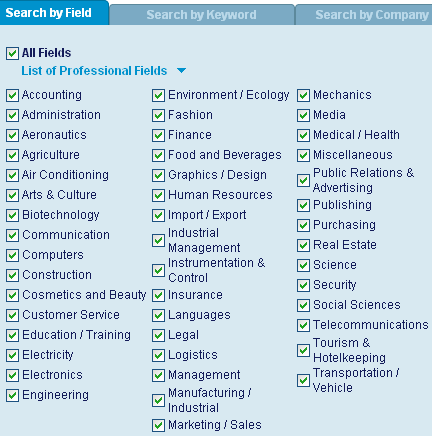
2. Date range: Relevant positions are generally updated on a daily basis, but if you are a new site visitor initially you should do a search of all dates to avoid missing any position. Next time you visit, the site will remember your previous visit (mark the box labeled "Since my last visit on:"), allowing you to find the newly posted positions.
3. Mark the regions in which you're willing to work. Here, too, clicking the "All Regions" box will mark all of them and clicking it again will clear all regions.
4. Selecting fulltime or part-time: Mark the type of job you would prefer. (More than one option may be selected.)
5. Display: Selecting "Full Display" will save you time, allowing you to immediately read all of the positions found through the search. Selecting "Listed Display" provides a glance at the headings, which does not always fully reflect the position.
Example: 1. Marking the fields accounting, computers (Software QA), administration, customer service 2. Determine the range of dates, e.g. since my last visit on… 3. Select a region, e.g. Central and Sharon 4. Select job type: full-time and shift work
Select display: Listed Display
Option for Multiple Selection of Positions in Indexed Display You have the option of selecting several job headings and viewing them with a full-size display by marking the Allow Multiple Selection box. By marking this box, beside each job heading in the indexed display you will see a checkbox.
The positions appear as job headings only. Mark the headings you'd like to view and by clicking on the Display Jobs button you can view simultaneously all of the positions you marked for full display.
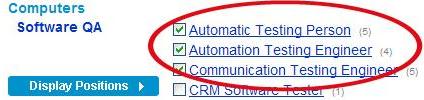
Option to save headlines you marked as headings of positions suitable for you by selecting Display Previous Markings, which allows you to save headings you marked as headings of positions suitable for you while searching by multiply-choice indexed display.
The aim of using the "Show Selected Items" is to spare yourself the trouble of having to review the headings you marketed the last time you visited the site, thereby streamlining the search process, when carried out according to fields or keywords.
The use of the function is done by selecting Index Display and marking Allow Multiple Choice and Show Selected Items.
For further details regarding the Allow Multiple Choice function and the Show Selected Items, click here.
Search by company:
You can search according to companies that have updated positions within a certain range of days or according to the name of the company. Select the region and the type of display just as in the above sections.
For example, search for positions at the Jerusalem Post. Mark the first letter of the name, "J", and if you know the location of the company, select the appropriate region as well. Click on Search. The search produces all of the companies that begin with the letter "J" and brings you to the spot on the list where the Jerusalem Post appears. Alternatively: By keyword: enter the search word "post."
The opening screen describes the company profile and by pressing on the "To the open positions" button you can access the list of positions at the company.
More Tips:
- Option of sending resumes via the website: Resumes can also be sent via Outlook or any other e-mail program. When sending resumes via the site in reply to a certain job listing, there's no need to attach your resume each time. On subsequent times your resume will be attached automatically when you click on the "Send resume via the site" link.
- In order to track the resumes you send, mark a √ beside the positions that interest you and then you can return to them at the end of the process by clicking on the Marked Positions button. - Sending resumes is carried out for each position separately by sending an e-mail message or fax to the address or fax number listed. In order to keep your markings of positions for the next time you enter the site, your browser must support Cookies.
- Another way to keep track of the resumes you've sent is to click on the Sent CV button (which appears on all pages of the website on the menu to the left), allowing you to view all of the positions you've applied for during any given time period, whether you sent your resume via Outlook or via the website.
- You can also tell whether you sent your resume in response to a certain ad based on the color of the "Send resume via the website" link inside the ad or highlight the e-mail address listed in the ad. These links are normally light blue, but when you click on one of them it turns scarlet. - Sign up for Jobneton, Jobnet's free weekly for jobseekers. It will be sent to you once a week by e-mail. It will keep you up-to-date on selected positions advertised on the website that match your profession or area of interest. Available only in Hebrew.
We wish you enjoyable web surfing, an efficient and easy job search and finally, of course, finding the right job for you as quickly and conveniently as possible.